
Among the many online threats today’s teens face, one is quickly rising: sextortion. Between 2021 and 2023, the number of online enticement reports, the category that includes sextortion, to the National Center for Missing and Exploited Children (NCMEC), increased by 323%. Unfortunately, this trend is continuing, and teenage boys have been the most common targets in more recent cases. Our latest research found that 812 reports of sextortion were received by NCMEC weekly between 2020 and 2023, with more than two-thirds involving financial demands. [1]
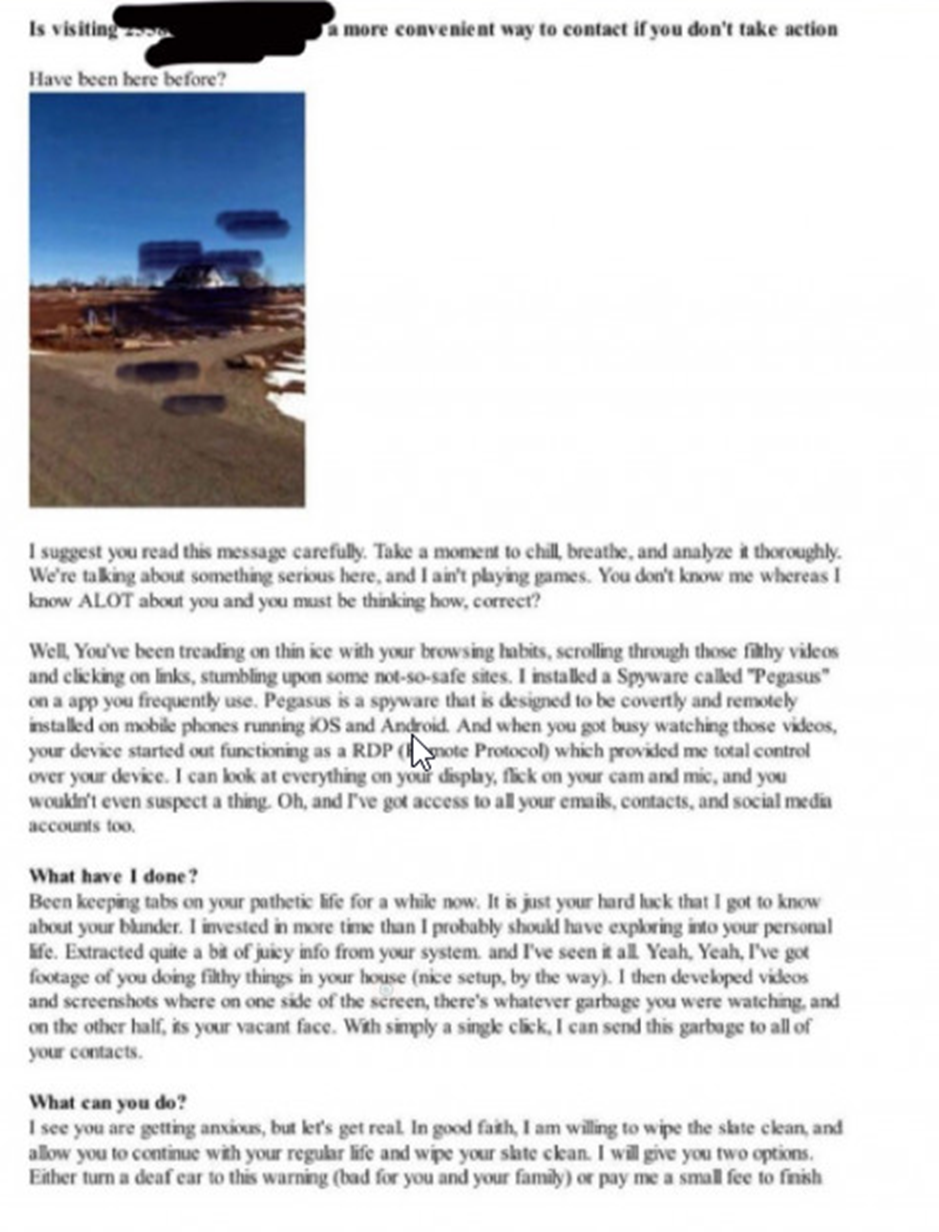
One common technique these days involves the use of Google, Apple or Bing maps to extort money from innocent victims or lure them into sharing explicit pictures of themselves in exchange for secrecy. The exploiter usually obtains the victim’s personally identifiable information (PII) including name, phone number, date of birth, and address through openly available search sources or by purchasing data from a data breach. The exploiter then emails the victim with a picture of their home obtained from a map service trying to convince them that he/she can access the victim physically and has been successful in breaching the victim’s network or personal device. The exchange for this secrecy often costs the victim in cryptocurrency or leads them to sharing more personal details including explicit pictures of themselves.
The treat letters look like this:
What should you do?
- Do Not Reply:
Even if you are smart at spotting the scam, it is recommended that you do not reply to the email. Most often, the spam detection filters in your mailbox protect you from such emails. Once you reply, the spam protection thinks that you know the sender and removes spam protection for such emails.
- Block the sender:
Even though these threat actors use multiple addresses, it is a good idea to block such addresses from sending you additional emails.
- Blur your Home on search engines:
Yes, most search engines allow you to blur the images of your home to protect your privacy. Here is how to accomplish this:
GOOGLE MAPS:
Here is a step-by-step guide for a parent/caregiver on how to blur your home on Google Maps:
Step #1 – Use Your Computer: The blurring feature isn’t available on the Google Maps app for iOS or Android. It can be accessed via a web browser on your mobile device, but it’s quite difficult to use. Your best option is a reliable web browser on your Mac or PC.
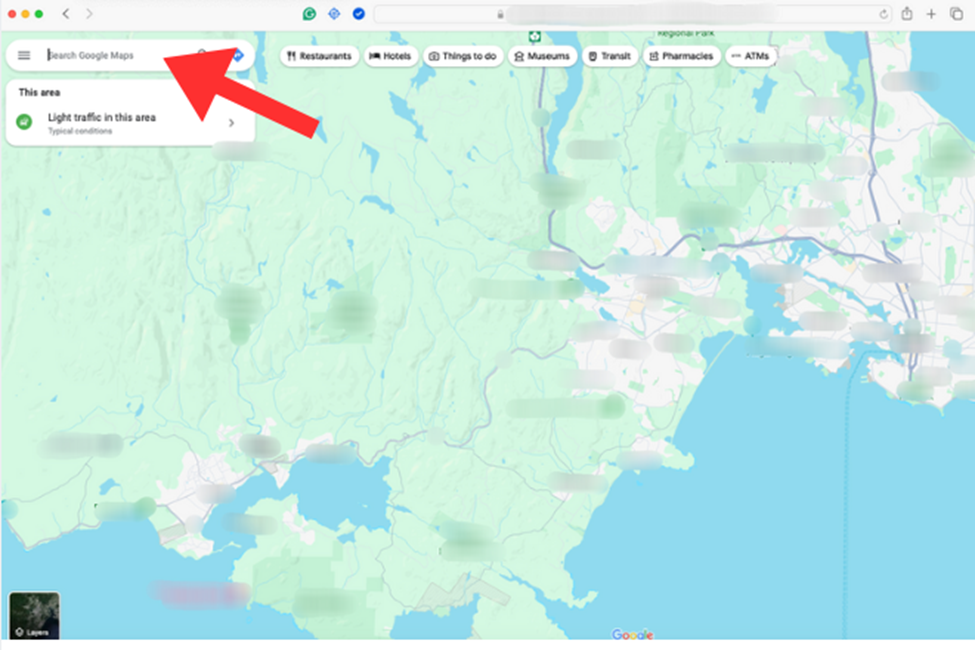
Step #2 – Access Google Maps: Go to maps.google.com. Enter your home address in the search bar at the top-right and hit return. Then click the photo of your home that appears.
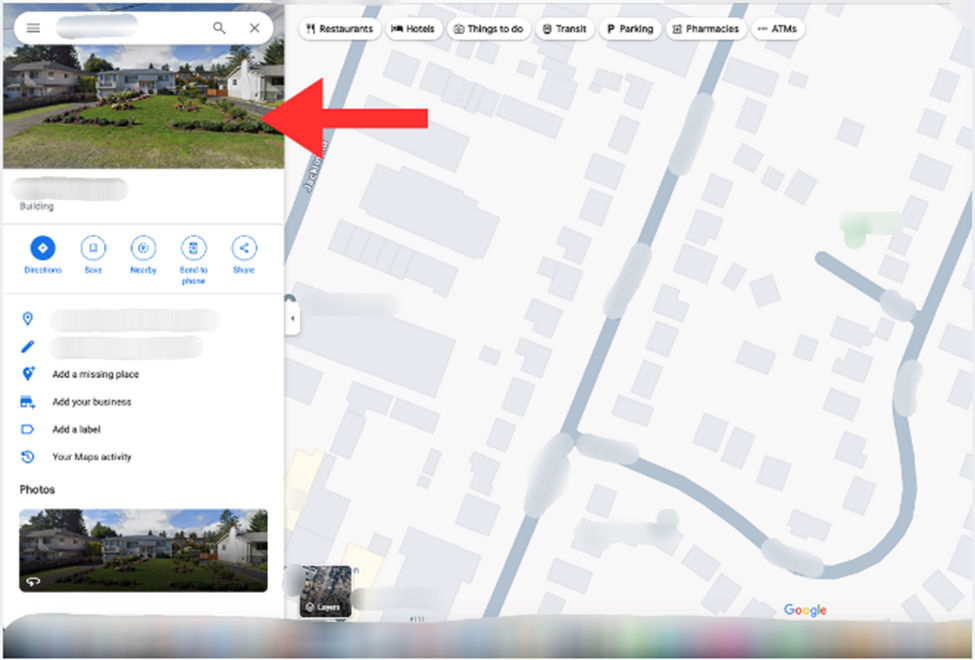
Step #3 – Select the Photo: Click on the photo of your home located above your address on the top-left part of the page.
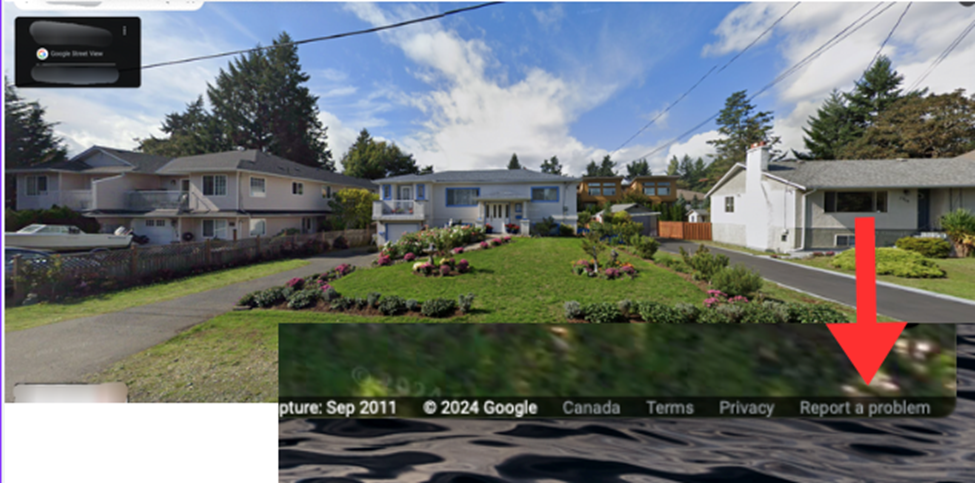
Step #4 – Street View: You’ll see the Street View of your location. Look for and click “Report a Problem” at the bottom-right of the screen. The text is very small, but it’s there.
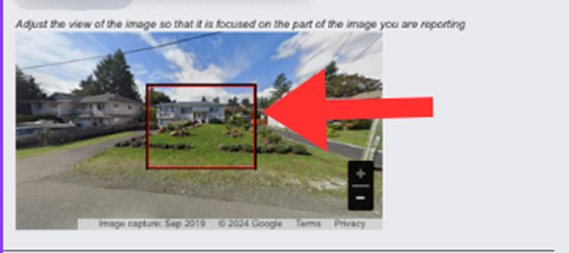
Step #5 – Adjust the Image: Use your mouse to adjust the view of the image so that your home and anything else you want to blur is within the red and black box. Move around with your cursor and use the plus and minus buttons to zoom in and out.
Step #6 – Blur Options: Once you’ve adjusted the image, choose what you want to blur from the options provided (we recommend home):
- A faceMy home
- Your car/license plate
- A different object
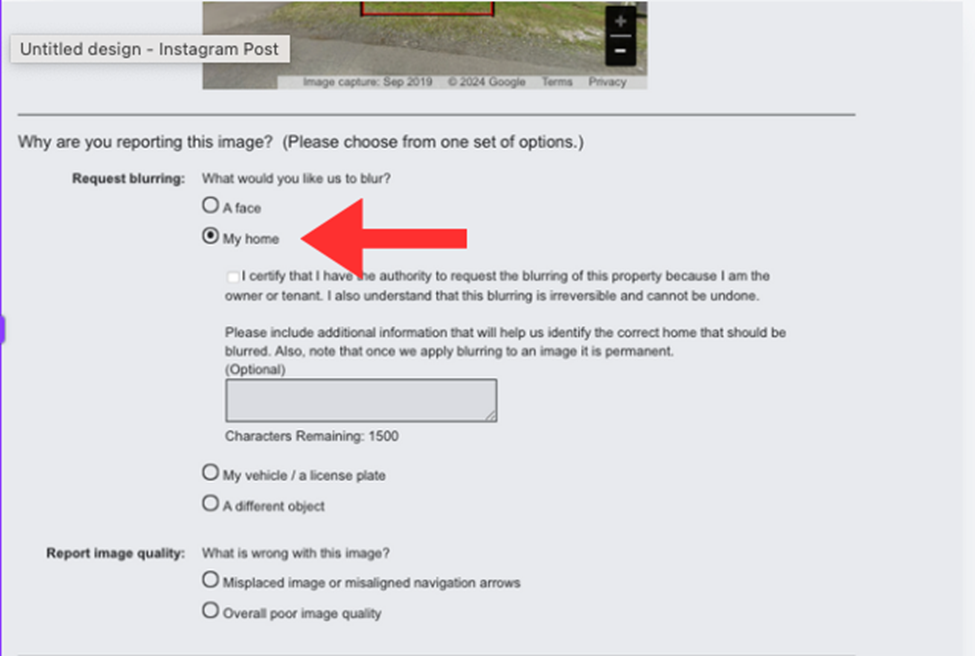
You may need to provide more details about what exactly you want blurred, especially if the image contains multiple cars, people, or other objects. Be certain about what you want blurred because once Google blurs something on Street View, it’s permanent.
Step #7 – Submit the Request: Enter your email (required), verify the captcha (if needed), and click Submit.
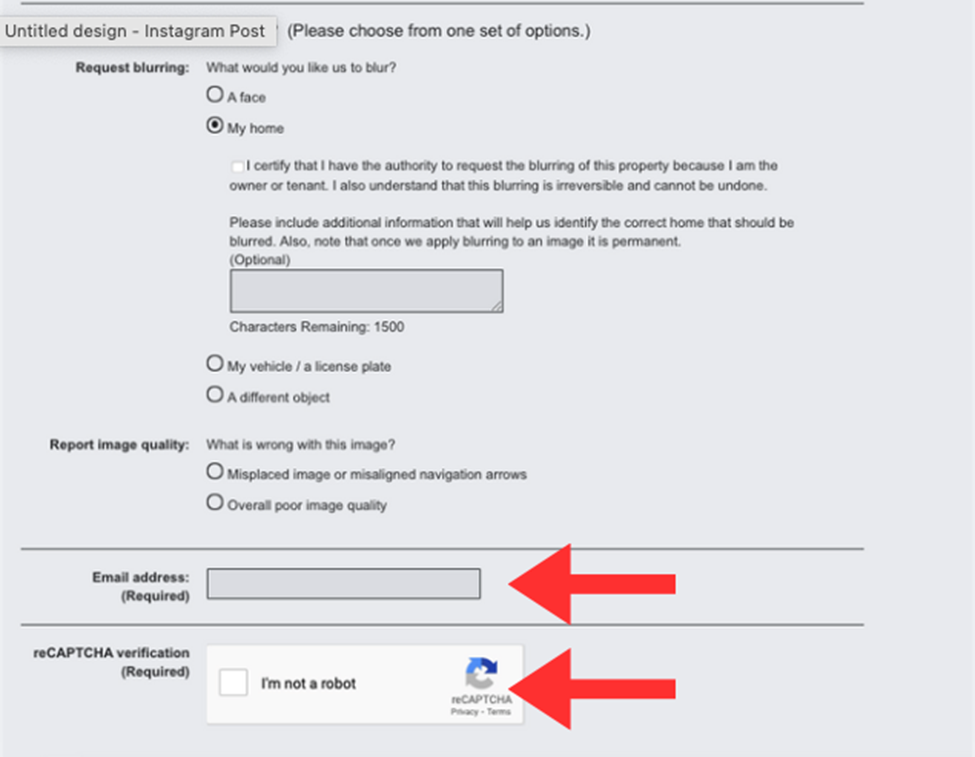
You’ll receive an email from Google stating that they’ll review your report and get back to you once the request is approved or denied. You might receive additional emails from Google asking for more information about your request. Google doesn’t specify how long the process will take, so keep an eye on your inbox for further emails.
APPLE MAPS:
Apple doesn’t have a dedicated interface for blurring houses like Google Maps, but they do take privacy requests seriously. Blurring your house on Apple Maps is straightforward – simply email Apple and request that your house, license plate, face, or other personal details be blurred in the Look Around feature, which is their version of Street View to this email – mapsimagecollection@apple.com You will be required to provide them with your full address and additional property description.
Bing Maps
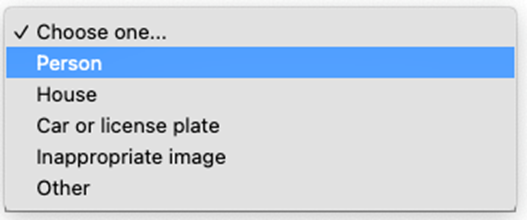
- Search for your address
- Choose three dots under the image
- Report a Problem
- Click on the image of the location
- In the very bottom left hand corner, choose Report a privacy concern with this image, inappropriate image, or other. You also have space to give a more detailed description.
Choose Submit but it doesn’t ask for an email so it doesn’t seem as if you’ll be notified. Just make sure to check back later. I’d set an alert on my calendar for 2-4 weeks to confirm. If necessary, resubmit.